Installing Company Portal (Windows Device)
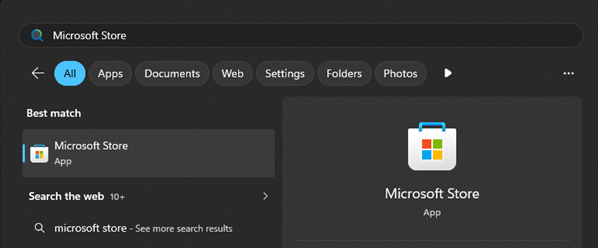
1. Click the windows button on your task bar and search for the ‘Microsoft Store’ application.
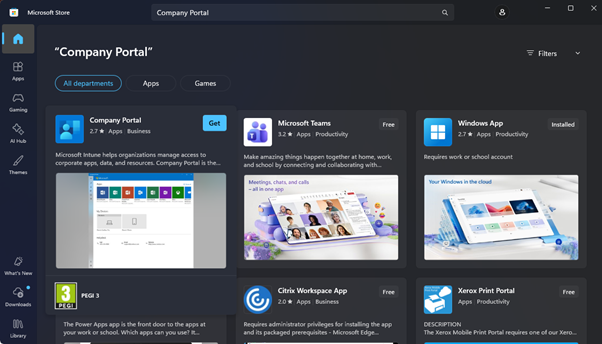
2. Use the search bar at the top of the Microsoft Store to look for the ‘Company Portal’ app
3. Click get/install and wait for the app to finish installing. This may take a few minutes. When finished you will be able to click open.
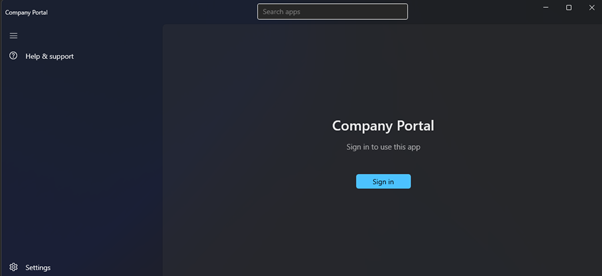
4. Sign into the app with the @wgs.org email and password provided for your daughter in the induction materials.
5. Once signed in, some applications will be made available to you that we recommend installing if you haven’t done so already. (These may not show up immediately).
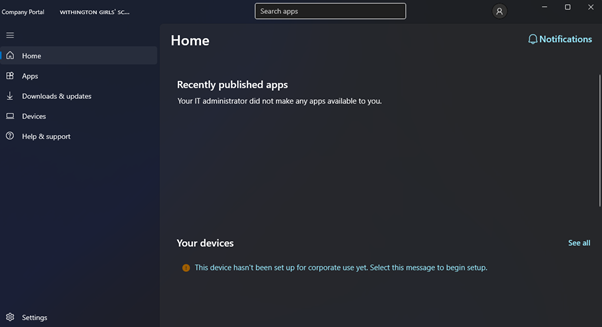
6. From this point, click the message below if it says; 'Your device hasn't been set up for corporate use yet...' and follow the instructions displayed. You may have to use your chosen multi-factor authentication method for this step.
Any log in steps for this should be done using your @wgs.org email.
You have now completed the Company Portal set up for your daughter’s device.
You may be prompted to sign in to all Microsoft applications if you’ve not signed into any other Microsoft apps before, in which case we would recommend agreeing to this as they will be expected to be using OneNote, Teams, Word etc. throughout their lessons.
If you were already signed into the Company Portal app with an account other than the @wgs.org email, sign out by clicking the portrait icon in the top-right corner, then proceed with the above step.
